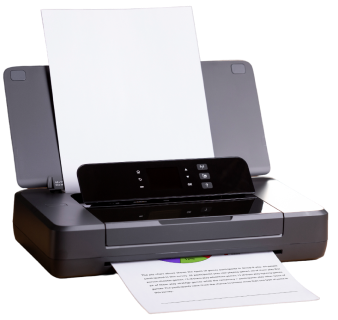





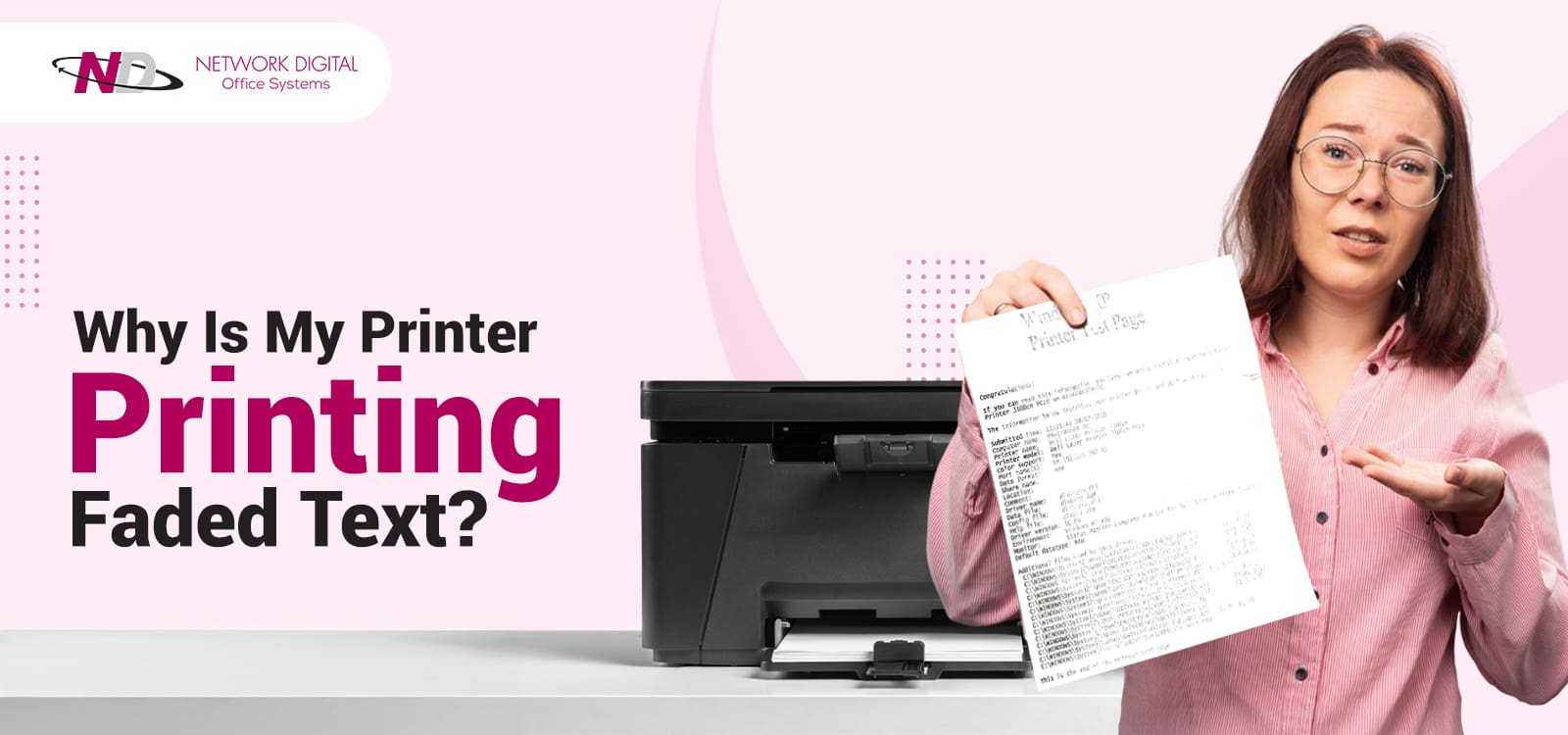
You have an urgent and important document to print. However, when the page spits out of the printer, and you look down and see that the text is faded. You attempt to print it again, wasting not only ink but also an additional sheet of paper, only to have it appear faded again.
You begin to wonder whether your printer has jammed or stopped working. Will you be forced to purchase new ink cartridges or invest in a new printer altogether?
Why is my printer printing faded? After reading this, you will never ask this question again! This frustrating problem usually occurs when you need to print work, school, or important documents or presentations. It doesn’t look professional in such situations, and the output fades! And it’s usually a waste of ink, paper, and valuable time.
Common Reasons for Printer Printing Faded Text
The first step in resolving printer faded print is to identify their cause. Let’s examine some of the most common culprits of this annoying situation.
Low Levels of Ink or Toner
A low level of ink or toner is the cause of most faded printing issues. Cartridges that are empty or running low may still print. However, it will eventually start printing lighter and lighter. Often, the printer software doesn’t accurately reflect low levels. Some “full” cartridges are completely depleted of ink.
Before you troubleshoot other possible causes, check your cartridge levels first. On your computer, open the Control Panel and view Printer Properties. You will see precisely how much ink or toner is in each cartridge.
Blocked Nozzles and Clogged Print Heads
Inkjet printers experience dried ink that can block their nozzles. Some people don’t print often enough, causing the ink to dry in the nozzles. Know how to fix paper streaks and line issues in a printer to ensure the ink flows properly. The print heads transfer tiny droplets of ink to the paper, and if the nozzles are blocked, ink cannot flow properly.
Canon and Epson printers tend to have this problem. So do HP printers, which have print heads built into the cartridge because they can clog if not used. You can also trap air bubbles in the ink well. It will also cause issues with the ink flow.
Incorrect Print Quality Settings
Most printers will have a DRAFT (or ECO) mode that may be enabled to help save ink. This will make the prints look lighter than usual. It is possible that someone changed your print settings without you knowing and didn’t restore them.
Low toner density settings in laser printers result in completely faded output. Lazy laser users will inevitably accidentally switch that mode on and forget about it. The printer will use that print setting for each document.
Toner Distribution and Transfer Problems
Toner powder needs to be evenly distributed before use. After a period of inactivity, the toner clumps together inside the cartridge. It will produce faded spots or streaks on your printed pages. Again, it’s not unusual for this issue to occur on only one side of the paper.
The transfer roller moves toner from the cartridge to the paper using an electrical charge. If the transfer roller is dirty or scratched, it won’t transfer the toner correctly. In some cases, the toner may transfer to the fuser roller rather than to the paper, resulting in a consistent fade across all printed pages.
Dirty or Damaged Internal Components
Dirt, dust, debris, or fingerprints will all impact print quality. Specifically, the drum unit, transfer roller, and fuser will all collect dirt over time. This dirt accumulation impedes the ink, or toner, from adequately transferring to the paper.
OKI laser printers utilize LED heads that also require regular cleaning. If the LED heads are dirty, the ink or toner will also be transferred faintly, resulting in faded letters and black, smudged lines. Each printer part plays a detailed role in print quality.
Expired or Low-Quality Cartridges
Old cartridges can create issues even if they aren’t empty. Additionally, toner and ink require proper storage to prevent drying out (ink dries out, and toner can combine and clump). An expired cartridge may have sat on the shelf for months or years. It may be dry and degraded inside, which will not produce rich, vibrant colors.
Refilled or third-party cartridges may not provide consistent results. Beyond mixed results, many third-party cartridges perform equally well. Still, the cheaper ones often use poor-quality ink formulations, resulting in lighter prints.
Paper Types and Quality
An incorrect paper type can cause print fade-out issues (in the case of inkjet-style prints). Even with a regular printer and glossy paper, the ink sits on the surface rather than absorbing, resulting in uneven fade-out and prints. Surface textures affect the ability of ink to stick together.
Simply switching the paper type setting in the printer driver can solve this issue. For example, if your media is on a heavier stock, it may be as simple as switching from plain to thick paper. An uneven paper surface will also prevent consistent ink from transferring consistently.
Environmental Factor
Humidity levels are one of the factors that affect printers the most. A lack of humidity can prevent ink or toner from setting properly on the paper. Ink will dry too quickly during the drying or setting process. If there’s too much humidity, the paper will draw in moisture from the air and ripple with dampness.
The damp paper will prevent the ink from drying uniformly. Keep your printer away from windows, external doors, or kitchen areas. Store backup printer cartridges and paper in a cool, dry place with a stable temperature. Environmental control will keep print quality consistent.
How To Correct Fading Prints? Easy-to-Follow Fixing Steps
Now that you know the causes, it is time for us to take action using the tested method mentioned above. Follow the steps below for the best results.
Checking Ink or Toner Levels
If you have printer software installed on your computer, open it. Look for the “Ink Levels” or “Supplies Status” on the menu. You will be able to confirm exactly how much ink you have for each color. Please do not just look at the cartridges and think it’s good. A full cartridge can still be empty on the interior side and not flow out for you.
Replace any empty or low-ink cartridges right away. For toners, remove the cartridge and gently shake it from side to side for 10-15 seconds. This action will evenly distribute the remaining toner throughout the cartridge. Once again, it will break up powder clumps, giving you more prints before you have to replace it.
Reinstall the toner in the printer, then print a test page. If the prints now have some color, you were able to distribute the toner evenly enough to assist you. If the print is still faded, please move on to step two.
Adjust Print Quality and Density Settings
Open your document and push Ctrl+P to access the print options. Click “Printing Preference” or “Properties,” depending on your system. Then find the “Quality” or “Advanced” tab in the settings menu.
Now we need to change the setting from “Draft” or “Economy” to “Normal” or “Best” quality. Be on the lookout for the “Print Density,” “Toner Density,” or “Toner Darkness” options. You should increase these settings for a darker and bolder print. The majority of printers allow 1-5 adjustments, or light-to-dark adjustments.
Press “Apply” and “Set as Default” to have those settings carry over into all future prints. Print a test page to ensure your printer is darkening your prints. Suppose your printer is set up to the settings above. In that case, it should solve most cases of the printer not printing dark enough prints immediately.
Clean the Print Heads
For faded prints or text, cleaning may be required if you are using an inkjet printer. If you are using an inkjet printer with a persistent fading issue, your next step is to clean your printer’s print heads.
Most inkjet printers have a built-in “cleaning” feature that clears out any blockages without you having to open it. You can access this cleaning option in your printer’s control panel or in your printer settings on your computer.
For Windows users:
- Visit the Start menu; then, click on Settings or Control Panel
- Once you are in Settings, click on Devices and Printers
- Check the model of your printer and then click Manage
- After that, go to Printing Preferences and then to Maintenance
- Select Clean Print heads or Print Head Cleaning
For Mac users:
- Open System Preferences and then click on Printers & Scanners
- When you find your printer, click on Options & Supplies
- Go to the Utility tab.
- Select Print Head Cleaning
After you clean your print heads, print a nozzle check pattern. This diagnostic page shows whether any nozzles are still blocked. You will see gaps or faded lines in the printed pattern. Repeat the print head cleaning 2-3 more times if needed.
Wait 10-15 minutes between printhead clean cycles – you don’t want to give it time to make blocks worse.
Run Diagnostics Tests for Print Quality Problems
From the printer menu, print a diagnostic page. Most printers, even older models, have a built-in print test you can run from the control panel. This test page will help isolate whether the issue is with the hardware or the cartridge.
When the test page is printed, examine the sheet for gaps, banding, uneven lines, faded areas, or missing colors. The pattern will show you exactly which color is needed and whether any part needs attention.
If your test page is clean and printed without any irregularities, your printer hardware is functioning correctly. If the test page is faded, then it is likely that there is a more complex mechanical issue with the printer.
Remove/Reinsert or Replace Cartridges
Completely power off your printer, then lift the cartridge access door. Carefully remove each cartridge by pressing down and gently pulling out. Then check both the cartridge and the printer’s electrical contacts for any dried ink, dust, or residue. Wipe off any residue you find with a slightly dampened microfiber cloth soaked in isopropyl alcohol.
Let it dry for 2-3 minutes and then reinstall the cartridges. Be sure to push the cartridges in firmly until you hear a definite click! Loose cartridges are the source of unequal ink distribution, resulting in faded patches on the print. Let’s go over replacing the cartridges if they are old, expired, or defective. Look for the manufacturing date on the cartridge or box.
Cartridges older than 2 years need to be replaced, as they are unlikely to work even if still sealed. You might even discover that this step solves your faded text printing issue with a laser printer right away!
Printer Alignment for Consistent Quality
Misalignment with the printhead can cause blurry or faded text. You should always run the utilities through the control panel to align the printer. This helps calibrate the printhead’s movement across the page and ensures all text prints uniformly.
Most printers have an automatic function that prints a test pattern and scans it to align the printer. Others require you to choose the best-looking printed pattern from several printed test patterns. Regardless, proper alignment will ensure dark, crisp text on every printed page.
Clean or Replace the Drum Unit
In laser printers, a worn drum is responsible for light prints. The drum unit transfers toner to paper when exposed to light. Many printer models will give an indication when it is time to replace the drum. Whether you have to refill the ink can depend on how often you print.
A tell-tale sign could be if the prints start to repeat these fade patterns, hazing, or ‘ghosting’ images.
If you are trying to clean your drum but still get poor print quality afterwards, you should consider replacing the drum. Usually, drums yield between 10,000 and 50,000 pages, though this depends on the make and model. The more you print, the quicker the drum will wear down.
Deal With Transfer Roller or Fuser Issues
The transfer roller and fuser are internal components that handle the actual toner transfer process. The transfer roller carries the toner from the cartridge to the printed paper. This is done by electrical charge.
You should be able to carefully pull it out when released by the provided hooks or release it duly. When replaced in the printer, the transfer roller should sit flat, not crooked or fudged.
Once again, ensure the roller surface is cleaned with a dry cloth or possibly compressed air. Refrain from touching the roller surface with your hands. It can interfere with the electrical charge that helps transfer toner properly.
The fuser unit is what “fuses” the toner onto the paper using heat. Test to see if toner is stuck on the fuser roller surface. Suppose toner is sticking to the fuser roller. In that case, it can cause faded prints and indicate that the fuser is not working correctly.
Check Paper Type Settings
Make sure you load the correct paper type for your printer and the document you are printing. Plain paper will be fine for text documents. Photo or glossy paper will require your printer to support that type of printing with the correct settings.
In the printer settings, before printing, select the paper type that matches the paper loaded in the printer. To do this, find the “Paper” or “Media type” drop-down in the print preferences option. If you are using thick paper, for instance, you will want to change the paper type from “Plain Paper” to “Thick” or “Heavy”.
This option sets the amount of ink the printer will use. Incorrectly calibrated printer settings can result in insufficient ink (faded print) or excessive ink (smudged print). Always ensure the paper is completely dry and properly stored in a cool, dry place. Paper will absorb moisture from the air when it is wet. When the printer comes into contact with damp paper, print quality is disrupted.
Update Your Printer Drivers and Firmware
An outdated driver can cause print quality issues or even become corrupt, leaving the printer unable to communicate correctly with the computer. To address any drift issues with your printer, go to the manufacturer’s website, download, and install the most up-to-date compatible driver.
Be sure to uninstall the outdated driver and restart your computer after completing the installation. It will ensure the driver installs correctly. Driver updates often include bug fixes and improvements. They help the printer function correctly and enhance print quality. Updates can also improve operability with a new computer operating system.
Check the printer app’s settings to see if the manufacturer has a recommended firmware update. Firmware updates should be completed whenever the company recommends. These work with the printer’s internal operations to improve its performance. Companies will release firmware updates to address known printing issues.
Preventing Faded Text or Intermittent Print Quality Issues
Preventing print quality issues is easier than dealing with them after they occur. If the following maintenance recommendations are followed, the printer will perform to its full potential.
Use Your Printer to Prevent the Clogs
Make sure you print at least once a week. Regular printing helps keep the ink in copiers/inkjets flowing smoothly through the system. It prevents nozzles from clogging with dried ink. Set a reminder on your phone or computer to print something weekly.
Even if your primary focus is printing just black text, print a color test page at least once a month to exercise all of the cartridges. With Laser printers, you won’t notice the impact of inactivity on the printhead as much, since the toner remains solid. However, regular (weekly or monthly) printing helps keep them active. It also prevents components from settling and improves printing speeds.
If you use your printer regularly, consider leaving it on. Many newer conventional home office printers perform automatic maintenance while the unit is on. They perform printhead cleaning cycles, which help prevent clogging.
Store your Cartridges / Supplies in a Proper Manner
Spare cartridges should remain sealed in their original packaging until you feel you are ready to install them. You should store your spare cartridges upright in a cool, dry place, away from direct sunlight. Storing cartridges in the freezer or in extreme cold and heat will damage the ink or toner, and UV light is also damaging to your inks and toners.
The best temperature range for storing cartridges is anywhere from 60-77°F (15-25°C). Thus, avoid storing cartridges in garages, attics, or near heating vents. These areas fluctuate in temperature, which compromises the ink’s integrity. Don’t forget to keep paper in a sealed ream or in an airtight container. Proper storage can prevent moisture from absorbing into the paper, which can cause paper jams and faded prints.
Monthly Maintenance on Your Printer
You should run the cleaning cycles at least once a month just to be safe, even though you “think” everything is okay. Most printers will have automatic functions under “Settings” for performing maintenance. Regular, on-time maintenance will yield the best results in keeping internal parts running at peak performance.
The printer’s exterior can be wiped down weekly with a soft microfiber cloth to reduce dust buildup. Mechanical interference caused by dust accumulation is a gradual process. Therefore, investing time in its early removal is crucial to your printer’s long-term protection.
Lastly, check for firmware updates once every three months. Manufacturers generally will provide updates to improve your printers’ reliability. You’re sure to keep a log of when you performed the “cleaning” maintenance and when you changed cartridges. So you can see patterns and identify recurring problems.
Using Quality Ink, Toner, and Paper
Ink and toner of higher quality provide better and more consistent results. OEM cartridges have guaranteed compatibility. They are designed for your exact model printer and cost a little more, but may last longer and print more pages.
Compatible or remanufactured cartridges work well if you choose reputable suppliers. Make sure to read reviews and also look for guarantees when you purchase one. Avoid very cheap cartridges from unknown brands, as these may have terrible, fast-fading ink.
Match your paper quality to your printing needs. Higher-quality paper will absorb ink much better than cheaper varieties, making text sharper. Copy paper works for drafts, but use premium paper for important documents. Photo paper is essential for printing images with rich color.
Position Your Printer in an Optimal Environment
Place your printer in a stable environment, away from extreme temperatures. Try not to have them near windows where sunlight creates temperature fluctuations. Avoid placing printers near doors that bring in drafts and moisture. Keep them away from kitchens, where cooking moisture can affect both the paper and the ink.
Maintain room humidity between 40% and 60% for optimal results. Too dry causes static electricity and paper jams. Too much moisture makes paper limp, causing ink bleeding. A humidifier or a dehumidifier helps maintain ideal conditions.
Keep your printer well-ventilated. Allow at least 6 inches on each side to ensure good airflow and help prevent overheating, which could damage internal parts.
When to Seek Professional Help for Printer Faded Printing Problem?
Some problems require professional attention and diagnosis. Complex repairs attempted by non-professionals may also invalidate warranties or further cause damage. Call an experienced technician if:
- You have tried all the troubleshooting steps several times with no improvement.
- Several components must be replaced at once.
- Your printer keeps displaying error messages that won’t go away.
- The fuser unit looks physically damaged or is leaking.
- Printouts show ghosted images even after cleaning and replacing cartridges.
- Strange noises are coming from inside the printer during operation.
- Prints get progressively worse despite new cartridges.
For newer printers still under the manufacturer’s warranty, the first point of contact should be customer support. The problems can be diagnosed over the phone, and many issues are resolved with guidance from technical support. If not, they will arrange free repairs and replacements.
Authorized service centers use genuine parts and have specialized training. They can identify complex electrical or mechanical failures. Request a cost estimate before authorizing repairs.
Older printers may be more expensive to repair than to replace. If the repair cost is over 50% of the price of a new printer, consider upgrading. Newer models are much more efficient, print faster, and produce higher-quality prints. Consider the cost of repairing your printer against purchasing a modern one with updated features.
Get Clear Prints—Partner With Network Digital
It’s time to stop wasting time and productivity reading faded text and dealing with streaky pages. You now know how to troubleshoot and fix most print quality issues yourself. Still, when it goes beyond what you can DIY, it’s smart to have trusted experts who know office printing inside and out.
Ready to print with confidence and keep costs down? Choose Network Digital for office printing solutions in NJ & NY. Network Digital simplifies your printing operations. We offer flexible rentals, full maintenance, and upgrades. Our industry-tested services will guarantee your business runs efficiently.
Let Network Digital elevate your print quality so you can focus on what matters most. Give us a call or check your options today!