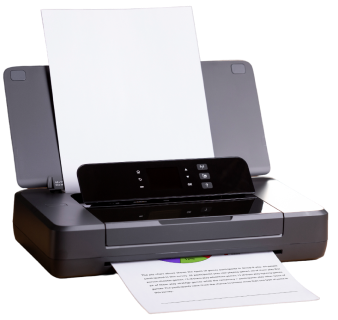





You hit print, and the deadline clock keeps ticking. Your document just sits there, and every job behind it waits too. A printer stuck in print queue is one of the most annoying office problems, especially when someone is waiting on that file.
Here is the good news: a stuck print job is almost never a broken printer. It is a small software hiccup, and you can fix it yourself in minutes. This guide walks you through every fix, from the quick cancel to the deeper spooler reset, so you can stop staring at a frozen queue.
Quick answer: A print job usually is stuck because the Print Spooler service froze, a driver is outdated, or the printer lost its connection. Cancel the job, restart the Print Spooler, and try again. If that fails, clear the spool folder and update your driver.
What Is a Print Queue?
Before you fix the problem, it helps to know what breaks. Understanding the queue makes every fix below easier to follow.
A print queue is a waiting line for your print jobs. When you print a file, your computer does not send it straight to the printer. It sends the file to a small program called the Print Spooler. The spooler holds the file, and then feeds it to the printer in order. Think of it like a line at a coffee shop. Each order waits its turn. If one order is stuck at the counter, every order behind it waits too.
A print queue lets you:
• Send several jobs at once without waiting for each one to finish
• See which jobs are printing, paused, or waiting
• Cancel a print job or reorder jobs before they print
When the spooler works, you never notice it. When it breaks, every job behind the stuck one freezes, and your printer stops printing altogether.
Why Is My Print Job Stuck in Queue?
Now that you know how the queue works, let us look at what breaks it. Most causes fall into one of six buckets.
1. The Print Spooler service crashed: The spooler is software, and software can freeze or crash. When it does, the print queue is stuck and stops moving.
2. Your printer driver is outdated or corrupted: The driver translates your file into a language the printer understands. A bad driver sends confusing data, and the job freezes.
3. The printer lost connection: Wi-Fi drops, loose cables, and printer sleep mode can all break the link between your computer and the printer mid-job. This is why a printer stuck in print queue often clears the moment you check the cable or network.
4. The printer is low on ink, paper, or has a paper jam: The job may sit in the queue because the printer physically cannot finish it. If your printer will not print from queue at all, check the tray and cartridges first.
5. The file is too large or corrupted: A damaged PDF or an oversized image file can confuse the spooler and stall the completely print queue.
6. Another job is set as the default or is paused: If you accidentally pause the printer or a job, everything behind it waits too, and the print job will not delete no matter how many times you try.
How to Fix a Print Job Stuck in Queue?
You know the causes, so let us fix them. Work through these steps in order, starting with the easiest.
1. Cancel the stuck job: Open your printer queue and cancel the frozen document. Knowing how to cancel a print job properly clears the simplest jams in seconds.
2. Restart the Print Spooler service: If canceling does not work, restart the spooler (full steps below). This single step fixes most stuck print jobs.
3. Check your printer’s physical status: Look for paper jams, low ink, or an open cover. Fix any issue you find, and then try again.
4. Restart the printer and your computer: A simple restart clears temporary memory errors on both devices.
5. Update or reinstall your printer driver: Go to your printer brand’s website, download the latest driver, and install it.
6. Reconnect the printer: For wireless printers, remove the printer from your device and add it again. This resets the connection and often solves a printer not printing issue for good.
Most stuck jobs clear within the first two steps. Move further down the list only if the job stays stuck.
How to Clear a Print Queue in Windows?
If the quick fixes above did not work, it is time for a full reset. Here is how to clear a printer queue in Windows, systematically.
1. Press Windows key + R to open the Run box.
2. Type services.msc and press Enter.
3. Scroll down and find Print Spooler.
4. Right-click Print Spooler and select Stop.
5. Open File Explorer and go to C:\Windows\System32\spool\PRINTERS.
6. Delete every file inside this folder. Do not delete the folder itself.
7. Go back to the Services window.
8. Right-click Print Spooler and select Start.
9. Try printing again.
This process removes every pending job, so only use it when you do not need the other jobs in the queue. It fixes the vast majority of print queue not clearing complaints.
Tip: If you clear the queue often, save these steps as a batch file. Open Notepad, paste the three lines below, and save the file with a .bat ending.
net stop spooler
del %systemroot%\System32\spool\printers\* /Q /F /S
net start spooler
Double-click the file any time you need a fast reset.
What to Do If the Print Queue Will not Clear?
Sometimes a full spooler reset is not enough. If your printer queue is still stuck, these extra checks usually catch the hidden cause.
• Run the printer troubleshooter: Go to Settings > System > Troubleshoot > Other troubleshooters, and run the Printer troubleshooter. Windows checks for common errors automatically.
• Check for a second, duplicate printer: Windows sometimes creates a duplicate printer entry after a driver update. Remove the extra one and print through the original.
• Disable your firewall or antivirus for one test print: Some security software blocks printer communication. If the test print works, add your printer as an exception.
• Set your printer as the default printer again: Go to Settings > Bluetooth & devices > Printers & scanners, select your printer, and choose Set as default.
• Uninstall and reinstall the printer: Remove the printer from your device list, restart your computer, then add the printer again as new.
If none of these steps works, the problem may sit deeper in the printer’s hardware or firmware, not your computer.
Why My Printer Say “Printing” but Nothing Does Happens?
This looks like a stuck queue, but the cause is different. Here is how to tell them apart and get your printer talking to your computer again.
Your computer thinks the job sent successfully, but the printer never received or processed it. Common reasons include:
• The printer is asleep or in power-saving mode and did not wake up in time.
• The USB cable or wireless connection failed silently.
• The printer’s internal memory is full from a previous large job.
• A firmware bug is holding the printer’s internal queue, separate from the Windows queue.
Fix it by:
1. Turning the printer off and on again. This clears its internal memory.
2. Checking the printer’s own display screen for an error message.
3. Confirming the printer is connected to the same Wi-Fi network as your computer.
4. Sending a small test print, like a single text page, to check if the printer responds at all.
If the printer accepts the test print but not your real document, the file itself may be the problem. Try printing it as a PDF instead of directly from the original program.
How to Prevent Print Jobs from Being Stuck?
Fixing a stuck job is one thing. Stopping it from happening again is better. These simple printer-troubleshooting habits keep your queue moving smoothly.
• Keep your printer driver updated: Check the manufacturer’s website every few months for new versions.
• Restart your printer weekly: This clears its internal memory before it fills up.
• Avoid sending huge files: Compress large images or split big documents into smaller print jobs.
• Keep the printer close to your router: A strong Wi-Fi signal prevents mid-job disconnects.
• Turn off aggressive sleep settings: Set your printer to stay awake longer, especially in a busy office.
• Clear the queue after every large batch: Do not let old completed jobs pile up in the history.
• Run Windows Update regularly: Microsoft ships spooler bug fixes through routine updates.
These habits take little effort and prevent most stuck-queue problems before they start.
When Should You Contact a Printer Technician?
Sometimes the fix is not software at all. If you have tried everything above and the queue is still stuck, these warning signs mean it is time to call a professional.
• The queue still is stuck after you clear the spooler and update the driver.
• The printer makes grinding or clicking noises during a job.
• The printer shows a hardware error code that a restart does not clear.
• The problem happens on every device you try, not just one computer.
• The printer is under warranty and you do not want to risk voiding it with DIY fixes.
A technician can test the printer’s internal hardware, something software cannot reach. If the printer is old and breaking down often, a repair quote helps you decide whether to fix or replace it. NJ and NY businesses can request service or supplies directly from Network Digital instead of waiting on a manufacturer queue.
Network Digital — Efficient Office Printing Solutions.
A stuck print job rarely means a broken printer. Cancel the job, restart the Print Spooler, and check your printer’s status first. Still frozen? Reset the spool folder and update your driver. Build the prevention habits above, and stuck queues become rare.
If your office hits the same printer problems every week, the issue may be your fleet, not your settings. A managed print management program catches driver and spooler issues before they freeze a queue, and Network Digital has kept NJ and NY businesses printing for over 40 years.
Tired of jobs stuck in queue slowing down your team? Contact Network Digital for a client analysis on cost management for your printing, copying, and mailing needs.
Frequently Asked Questions
1. Why is my print job stuck in queue on Windows 11?
A frozen Print Spooler service is the most common cause. Restart it through the Services app (services.msc), or clear the spool folder at C:\Windows\System32\spool\PRINTERS to force the queue to reset.
2. How do I force a stuck print job to cancel?
Stop the Print Spooler service; delete all files in the spool folder, then restart the service. This forces every pending job to clear, even ones the normal Cancel button cannot remove.
3. Why does my printer show “printing” but never prints?
The printer likely never received the file. Restart the printer, confirm it is on the same network as your computer, and send a small test page to check if it responds at all.
4. Can a stuck print queue damage my printer?
No, a stuck print queue is a software issue only. It does not harm the printer’s internal hardware, so you can safely cancel jobs, restart the spooler, or reset the queue without any risk.
5. Do I need to reinstall my printer every time the queue freezes?
No. Restart the Print Spooler service first, since that solves most cases. Reinstall the printer only if the queue keeps freezing after repeated spooler resets and driver updates.
6. Is a stuck print queue a sign I need a new printer?
Rarely. Most stuck queues come from driver or spooler issues, not hardware failure. Only consider a replacement if a technician confirms a genuine hardware fault and the printer is already old.